This guide walks you through text-to-video, image-to-video and reference-to-video in Wan 3.0. Choose a mode, add a prompt or reference materials, set your output and generate your video. Follow the steps below to create with Wan 3.0, or start with Draft Mode to explore your ideas.
Start with the shot you want to make. Choose a model for its inputs, output range and workflow, then keep it fixed while refining your prompt.
For detailed creative direction
Wan 3.0
Build a scene from text, animate a starting frame, or guide a shot with image, video and audio references. Use Wan 3.0 for longer actions and shots that combine several reference roles.
Wan 3.0 Video Prime focuses on faster generation with the same core multimodal controls. Try camera or lighting variations here, then compare the finished clips before choosing your direction.
Start with affordable Draft Mode to see how an idea looks in motion. Try different actions, compositions and prompts at a lower cost, then develop the direction you like.
Use Draft Mode for low-cost prompt experiments. Choose Wan 3.0 for longer shots and multimodal references, or Video Prime to explore variations quickly. Check output settings and estimated credits when switching models.
Prepare the right references
Text to video
No visual material is required. Prepare a scene description with one subject, one action and a camera direction.
Image to video
Use a clear character or product image with room for movement. Keep the same starting image while testing prompt changes.
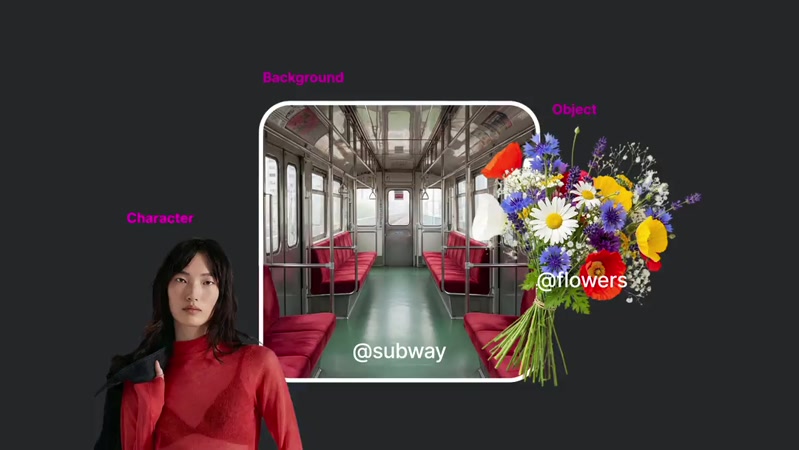
Multimodal references
Prepare only what the shot needs: an appearance image, a motion clip or audio. State the role of each reference and choose the matching input mode.
Create your video in five steps
01
Open Wan 3.0 and sign in
Open the generator, sign in and choose a model. Begin with a simple shot; a full storyboard can come later.
Open the Wan 3.0 generator, sign in and check your credits.
Choose Wan 3.0, or Wan 3.0 Video Prime to explore variations quickly.
Decide between text generation and reference inputs.
Prepare a scene description or starting image before setting the output.
Use text when the scene is still an idea. Start with an image when you already have a character or product in mind. Use multimodal references when several materials help explain appearance, movement or sound.
Text to video: describe the subject, scene and action without uploading an image.
Image to video: open Reference to Video, add a starting frame and describe its movement.
Choose first-and-last frames when the shot needs a defined ending image.
For multimodal references, select the input mode and explain the role of each image, video or audio file.
Text to Video
A new scene, described from scratch.
Image to Video
A still image as your starting frame.
Multimodal references
Images, video or audio that guide the shot.
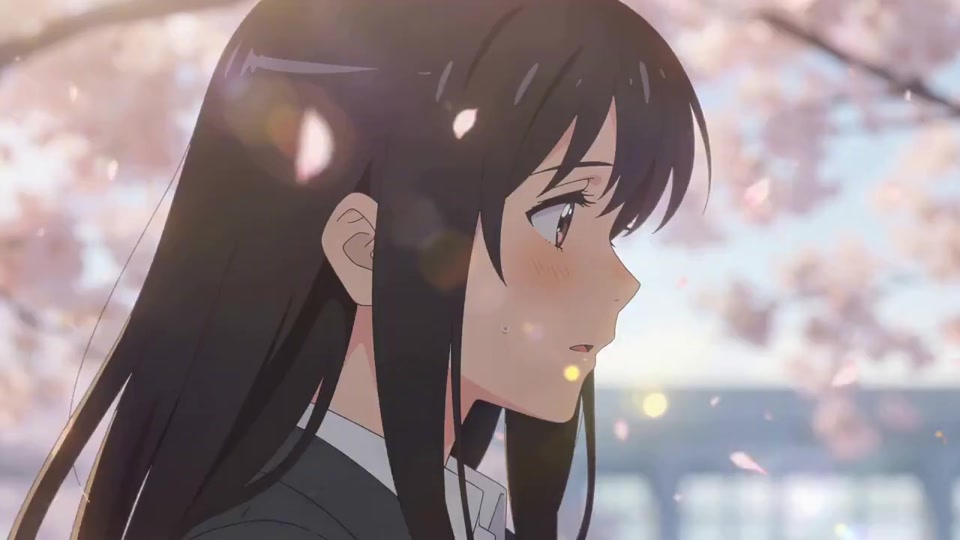
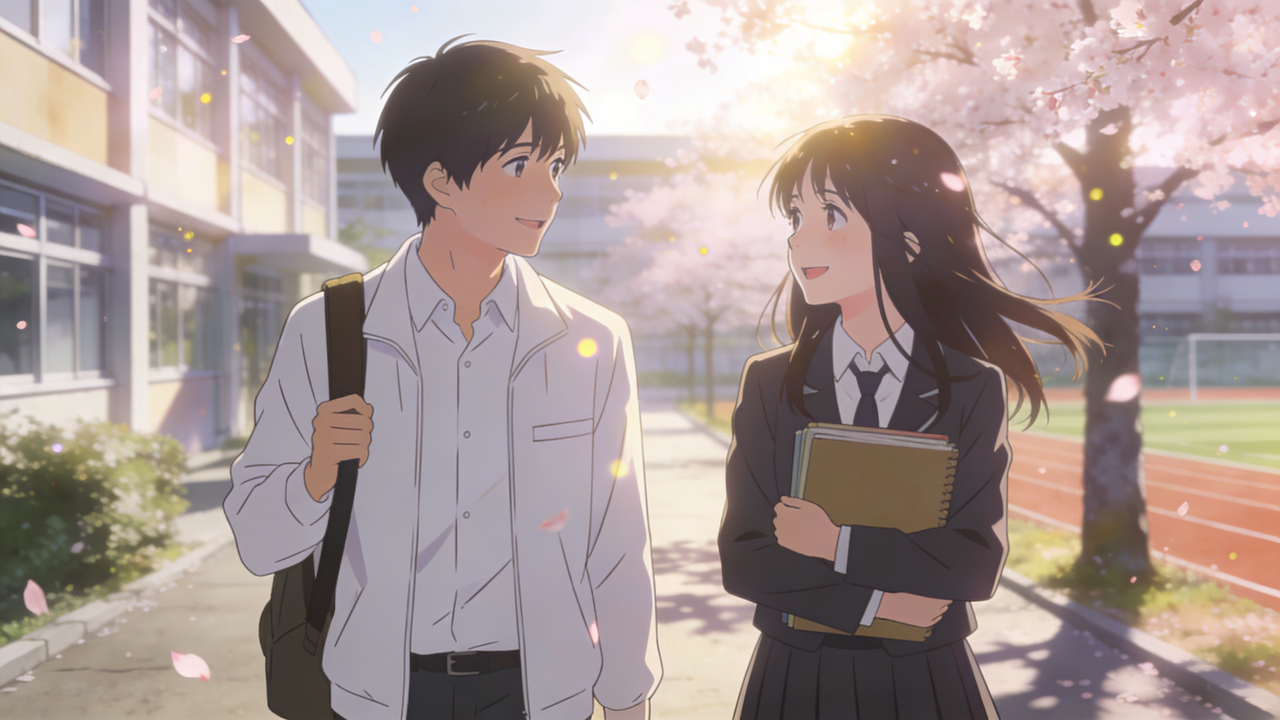
How do you turn a favorite image into a music video?
Imagine you have a cherry blossom illustration you love and a piece of music to go with it. Add both as references: the image shows the characters and visual style, while the audio supplies the music. Your prompt can simply connect them: “Use this image’s style to make a video for this music.” Watch the result to see whether it captures the mood you had in mind.
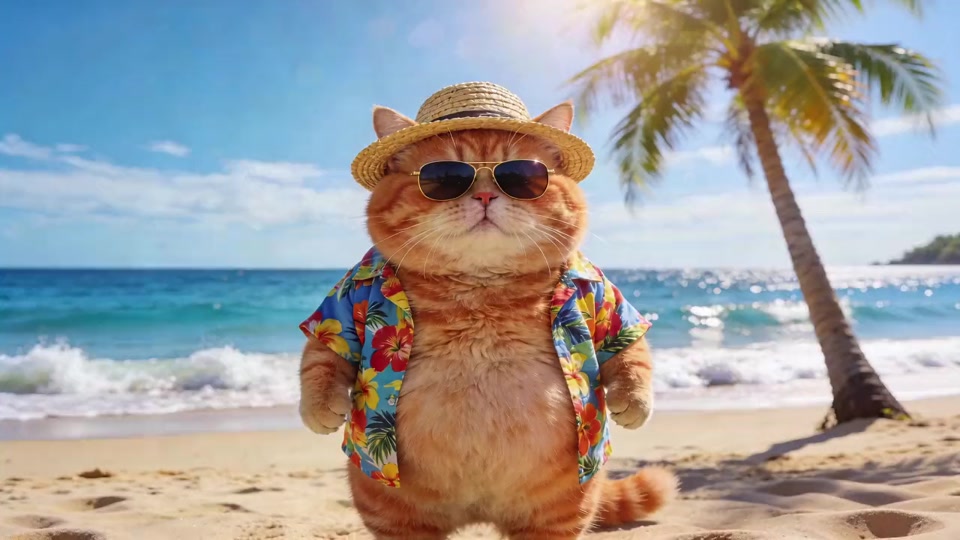
How do you show the same cat in different outfits?
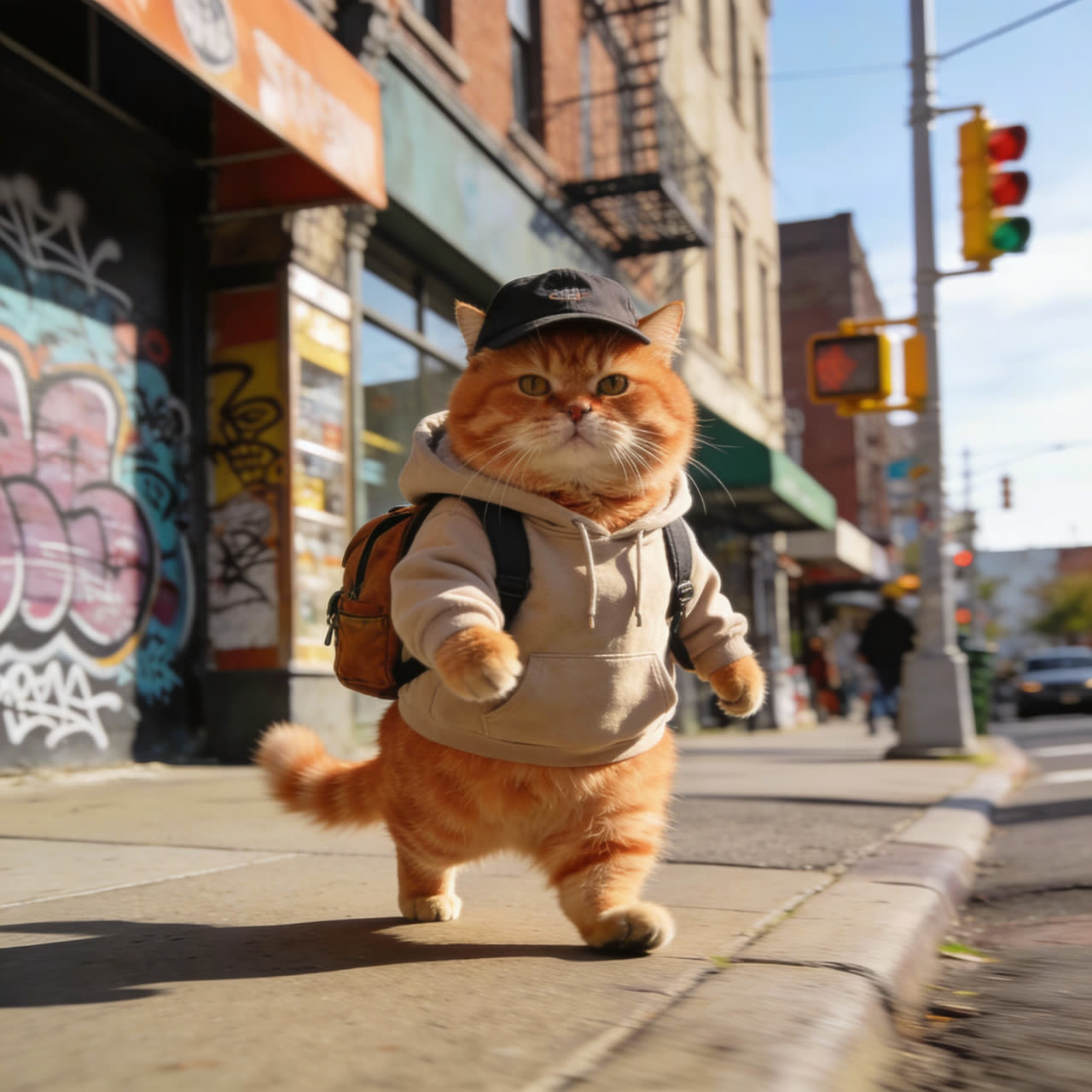
This time, imagine the same cat changing outfits across several scenes, with something happening in every shot. Four images show the outfits and settings, while a reference video demonstrates the editing rhythm you like. Add the scene order and actions, such as walking or turning, to your prompt. Then check whether the cat stays recognizable and the cuts feel natural.
Write a prompt that makes the shot easy to picture
Think of the prompt as a brief for a camera operator. Say who does what and where, then add light, camera movement and mood. Complete sentences explain how the elements relate better than a disconnected list of style words.
Describe the subject and the appearance details you want to preserve.
Explain the action, starting with one main movement.
Add the setting, lighting and one clear camera move.
Read the prompt back and remove conflicting directions; use the example below as a starting point.
A mint-green bicycle with a basket of daisies leans against a café on a quiet cobblestone street. A light breeze moves the petals and a linen awning. Warm morning light, a slow camera push toward the basket, natural textures and a calm cinematic mood.
Decide how long the shot should last and how it should be framed. Try a short clip first to check motion and composition before moving to longer shots or higher resolution.
Try 5 seconds for your first shot with one readable action.
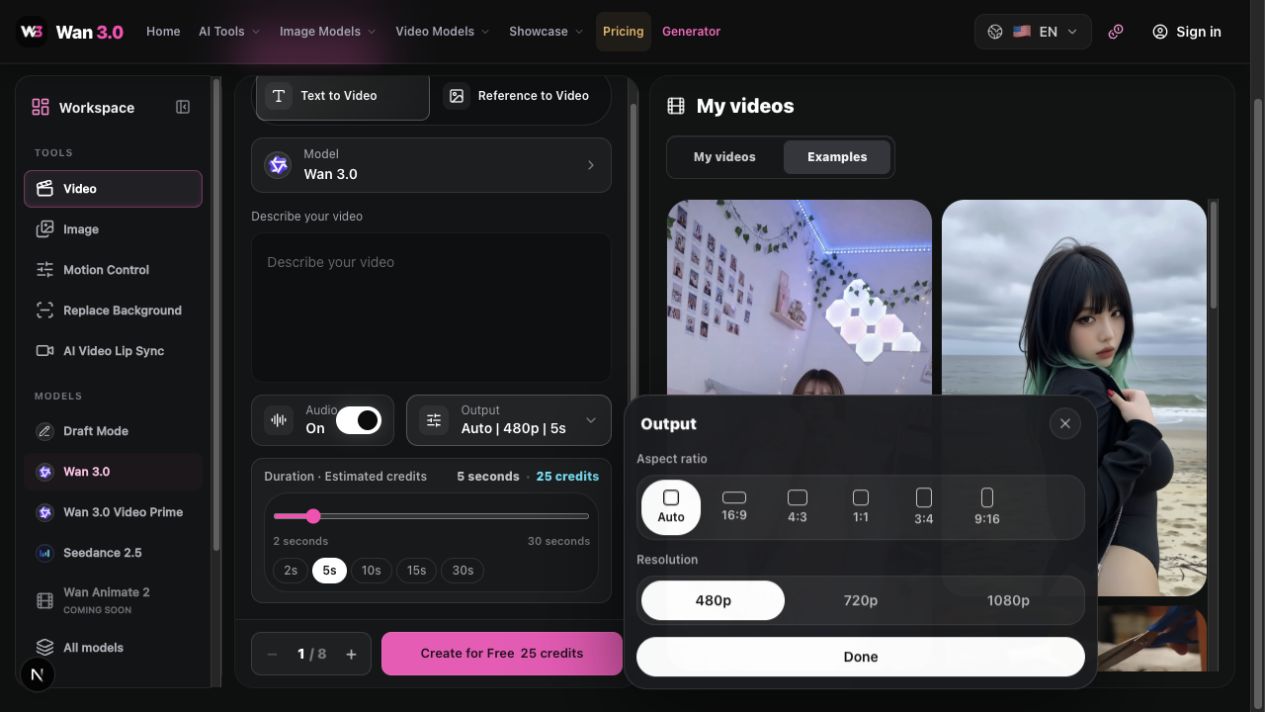
Wan 3.0 and Video Prime offer 480p, 720p and 1080p for testing or final output.
Choose 16:9 for landscape or 9:16 for portrait and check the audio option.
Start with one task and review the model, settings and credit estimate before generating.
A practical starting point
Setting
Available in Wan 3.0
For your first clip
Duration
2–30 seconds
Try 5 seconds with one clear action.
Resolution
480p · 720p · 1080p
Test the idea first, then choose the final output quality.
Aspect ratio
Auto · 16:9 · 4:3 · 1:1 · 3:4 · 9:16
Use 16:9 for landscape or 9:16 for a vertical video.
Audio
On / off
Decide whether your shot needs generated sound.
Task quantity
1–8
Start with one task and review the credit estimate.
These are Wan 3.0 workspace settings. The generator shows the available options and estimated cost for your selected model and inputs. Plans & credits →
Wan 3.0 output settings · English interface
05
Generate your video, review it and download
Select Create and follow the task in My Videos. Watch the completed clip all the way through before downloading or refining it.
Select Create to submit the task and wait for completion.
Open the finished item in My Videos and review the subject, motion, framing and audio.
Use the download action when you are happy with the result.
Keep the settings you like, revise one detail and submit a new task if needed.
Improve a video prompt in four passes
Begin with a simple action. Each version below keeps the earlier direction and adds one layer. Generate each as a new task with the same model, duration and aspect ratio so you can judge the change.
01 · Establish the action
Check whether the page turn is clear before adding detail.
A woman sits on a sofa, reading a book. She slowly turns one page and returns her gaze to the book.
02 · Define the setting
Keep the action; specify the character and surroundings.
A woman sits on a sofa, reading a book. She slowly turns one page and returns her gaze to the book. She wears a cream sweater and sits on a beige sofa in a quiet living room with a wooden bookshelf.
03 · Shape the light
Keep the scene; adjust the light and color.
A woman sits on a sofa, reading a book. She slowly turns one page and returns her gaze to the book. She wears a cream sweater and sits on a beige sofa in a quiet living room with a wooden bookshelf. Soft morning light falls through a window onto her face and the pages, with warm, natural colors.
04 · Direct the camera
Keep the scene and lighting; add one camera movement.
A woman sits on a sofa, reading a book. She slowly turns one page and returns her gaze to the book. She wears a cream sweater and sits on a beige sofa in a quiet living room with a wooden bookshelf. Soft morning light falls through a window onto her face and the pages, with warm, natural colors. A medium shot slowly pushes in at eye level. Keep the movement gentle and the book visible throughout the shot.
For image-to-video, use the same starting image and focus the prompt on what moves. “Make it brighter” is a revision instruction for your draft: incorporate it into the full prompt before submitting a new task. A new task does not automatically remember the previous video.
Turn an idea into a clearly described scene
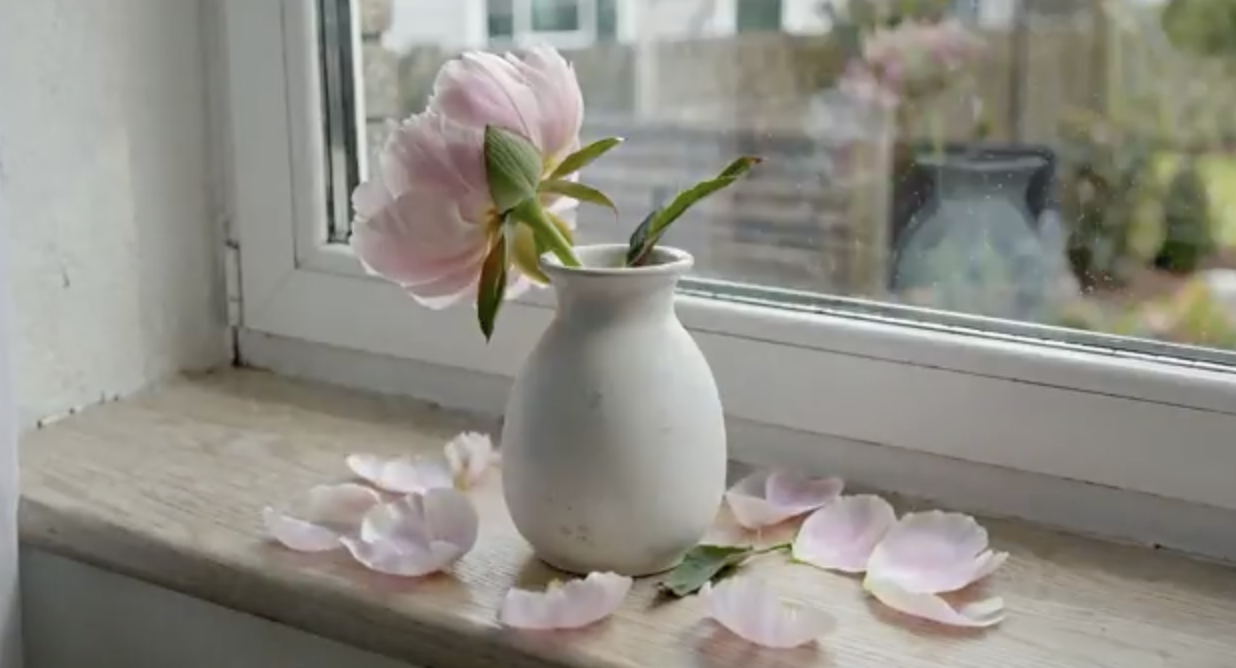
Imagine a flower blooming and wilting beside a window. You can begin with words, add images when you have a particular scene in mind, or describe a focused change when you only want to replace one object. These three examples show how each approach helps you explain your idea.
Describe what happens in a complete sentence
“Flower, windowsill, time-lapse” names a few ingredients, but leaves the action open. A sentence connects them: a flower stands beside a window, blooming and then wilting over two weeks. Now the subject and the passage of time belong to one scene.
The prompt also keeps the vase, window and angle the same. The flower changes while the viewpoint stays consistent, and weather brings variation to the light. Watch how the flower develops and how naturally the surrounding scene connects over time.
A flower blooming and wilting over two weeks, one photo per day. Same vase, same window, same angle. Light changes with weather. Audio: Quiet domestic.
Let reference images explain the appearance
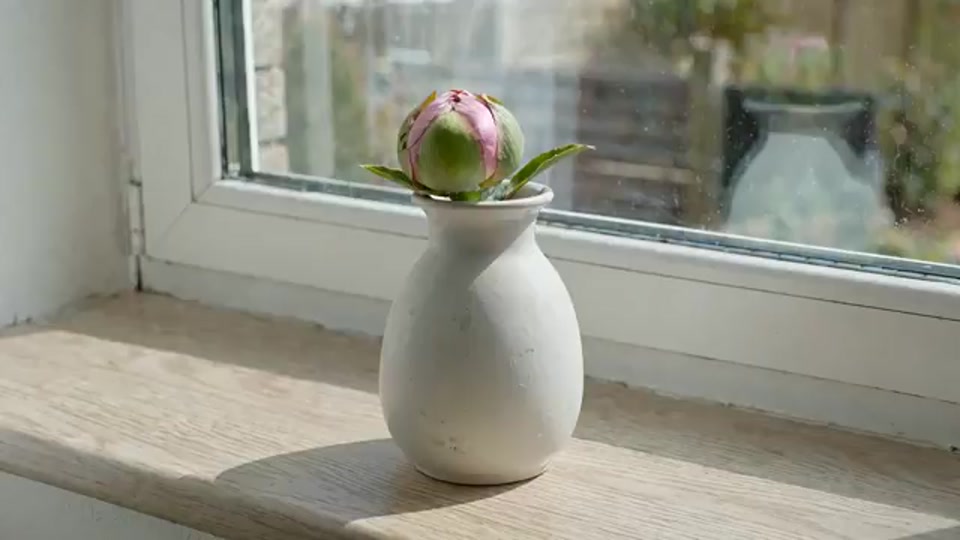
You may already know what the vase should look like and where the flower belongs beside the window. Rather than describing every visual detail, use images for appearance and keep the words focused on what happens.
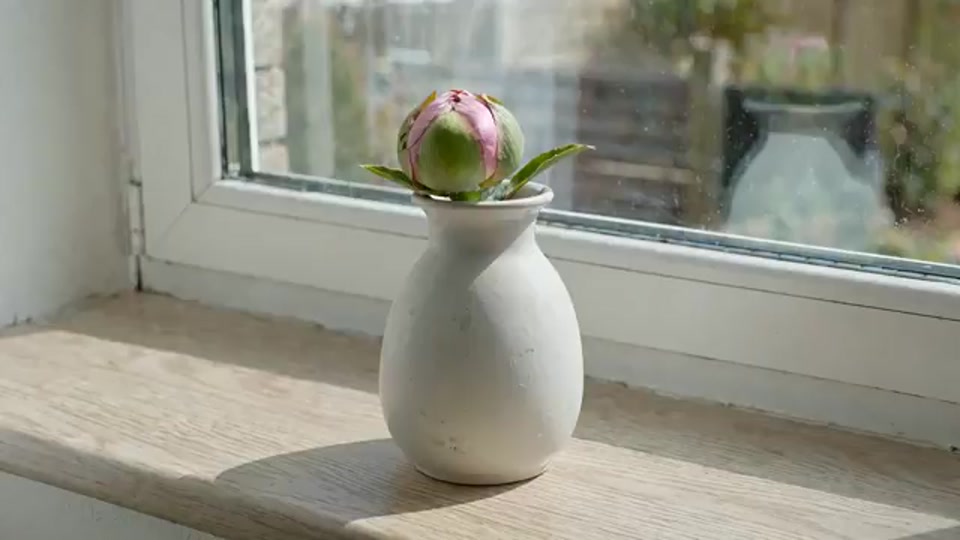
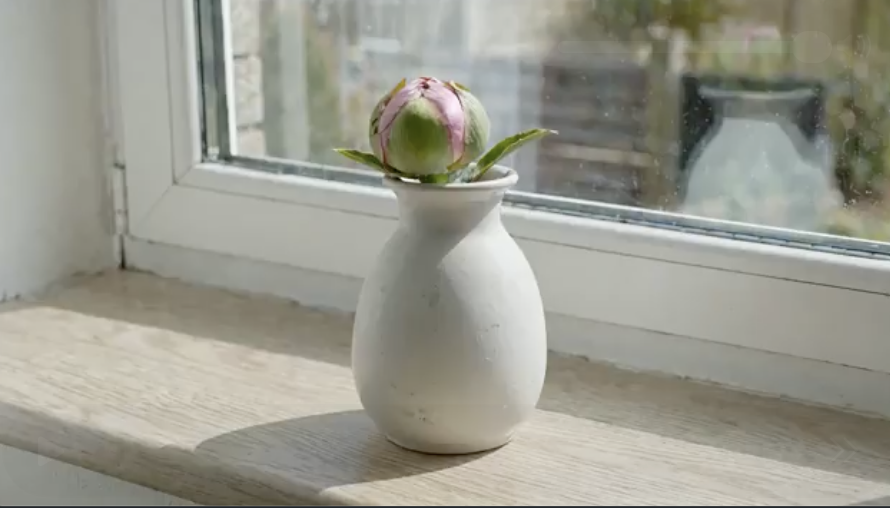
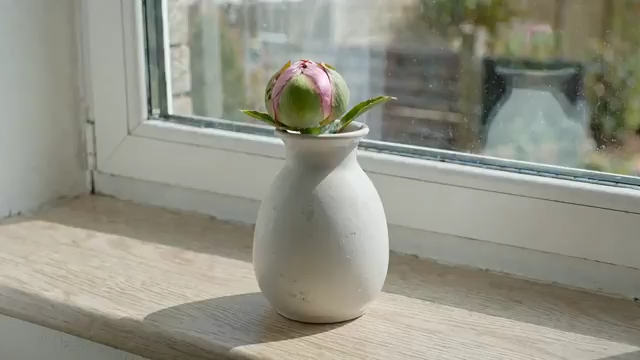
This version keeps the previous written prompt and adds two images. Look at the inputs, then the video: how do the vase, flower and composition relate to the references? Images can carry part of the description; every detail does not have to become another sentence.
Reference images
A flower blooming and wilting over two weeks, one photo per day. Same vase, same window, same angle. Light changes with weather. Audio: Quiet domestic.
Be specific about the object you want to change
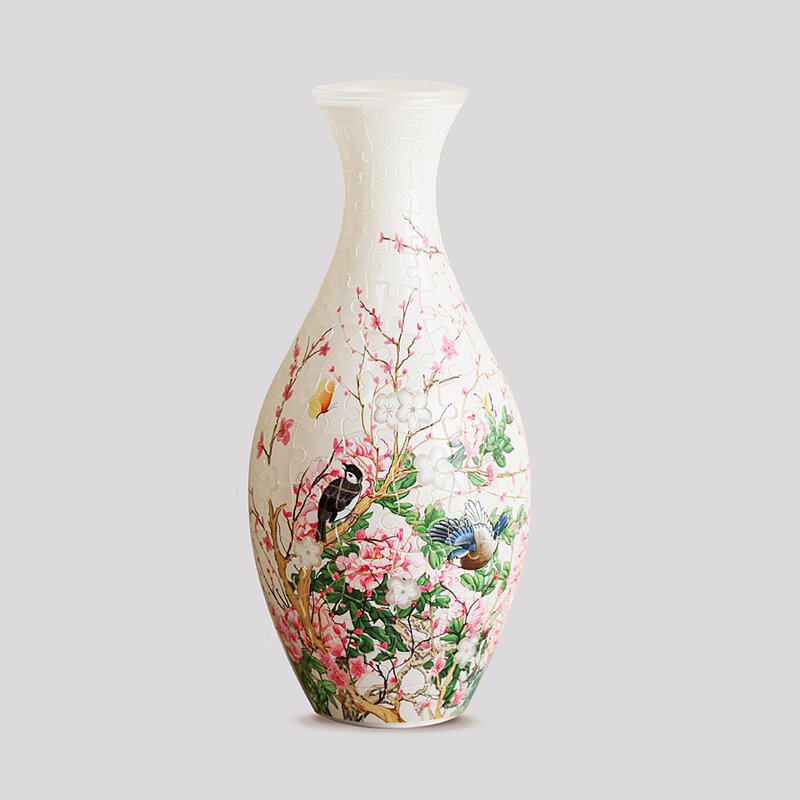
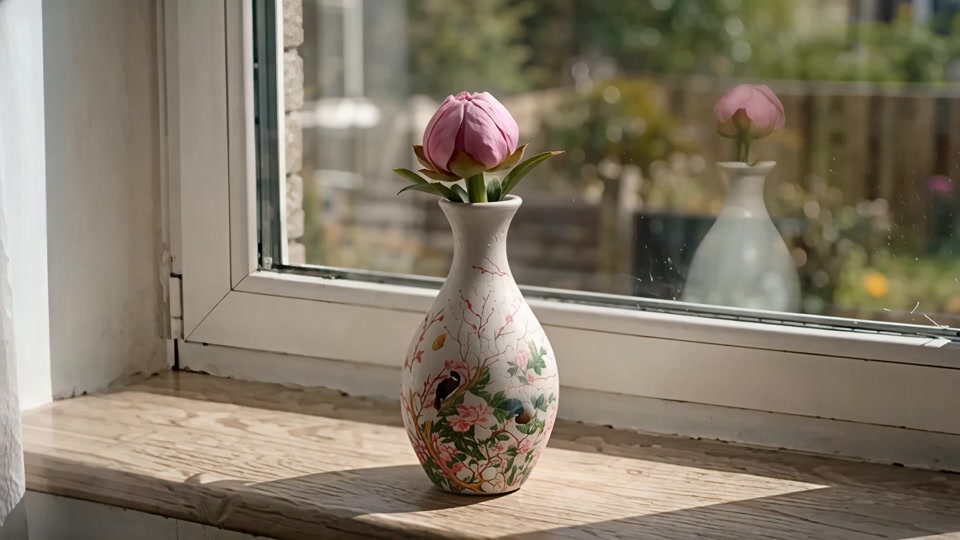
Suppose you like the window scene and only want a patterned vase. Instead of describing the entire room again, ask to replace the vase with the reference style. A focused request gives you a clear change to look for.
The inputs show the vase style and the window scene. First compare the vase’s shape and decoration, then look at the flower, window and light. Knowing what you want to preserve is just as useful as knowing what you want to change.
Reference images
Replace the vase with the style of the reference image.
When a shot needs another attempt
Too many actions
Reduce the prompt to one action that fits the duration. Add another beat only after the first reads clearly.
Conflicting directions
Replace a list of camera commands with one move. Describe lighting and composition in full sentences.
Unwanted elements
Describe a clean composition and name the elements to omit in the prompt. Keep the important subject details.
An unclear comparison
Change one variable, keep the original prompt and settings, and compare the complete clips—not only the first frame.
Make each attempt more useful
Start with one action
A single readable motion is easier to evaluate than several simultaneous events.
Keep the subject consistent
Use the same appearance details and clear reference images across related shots.
Give the camera one direction
Describe a push-in, pan or tracking move instead of combining conflicting directions.
Compare one change at a time
Keep the settings you like and revise only the part that needs improvement.
Wan 3.0 guide — frequently asked questions
Do I need an image to start?
No. Text to Video starts from a written prompt. Choose Reference to Video when you want to add a first frame or other reference material.
Where is image-to-video?
Open Reference to Video in the Wan 3.0 workspace and add a first-frame image. Describe the movement you want; an ending frame is optional.
Which reference formats can I upload?
The media inputs accept JPG, JPEG, PNG, BMP and WebP images, MP4 and MOV videos, and MP3 and WAV audio. The upload controls display file-size and item limits.
Can I use Wan 3.0 with a free account?
Free and paid accounts can use Wan 3.0 with enough credits. Review your balance and the estimated task cost before generating; the pricing page explains available plans.
Can I see and download my result?
The workspace shows the task status. Once generation completes, you can play the finished video and use its download action in My Videos.
Why is my result different from an example?
The prompt, reference material, settings and generation itself all affect the result. Examples are a starting point; refine one element at a time to approach your intended shot.
Start affordably, then refine your video
Use Draft Mode for low-cost prompt experiments. Choose Wan 3.0 for longer shots and multimodal references, or Video Prime to explore variations quickly. Check output settings and estimated credits when switching models.
Keep creating
Find a shot you like in the showcase, explore reference ideas in the library, or compare models before your next attempt.
Try your first shot
Choose Wan 3.0 for your next multimodal shot, or explore variations with Video Prime. Start with one short clip and build from the result.
Wan 3.0
Build a scene from text, animate a starting frame, or guide a shot with image, video and audio references. Use Wan 3.0 for longer actions and shots that combine several reference roles.
Wan 3.0 Video Prime focuses on faster generation with the same core multimodal controls. Try camera or lighting variations here, then compare the finished clips before choosing your direction.
Start with affordable Draft Mode to see how an idea looks in motion. Try different actions, compositions and prompts at a lower cost, then develop the direction you like.